Vertical Axis · Simultaneous Left & Right Edges · Upright & Portrait Scale

Calibrated Vertical Online Screen Ruler

Left and right vertical ruler edges engineered for upright height checks, standing cylinder measurements, and ergonomic portrait smartphone use.

Interactive Online Screen Ruler Workspace

Estimated calibration96.0 PPICalibrate
Guide Axis:

Align your object with the 0 tick mark. Click any ruler or grid to drop draggable measurement guides.

X: 0.00 cm · Y: 0.00 cm
Live Unit Converter@ 96.0 PPI
3 3/8 in (3 3/8 in)

Display Density Calibration · Saved Locally Per Screen

Calibrate Your Screen for True Physical Scale

Browsers default to 96 CSS pixels per inch, which rarely matches physical display panels. Choose one of the three calibration methods below so every millimeter and fractional inch tick corresponds to actual physical length.

Active ScaleEstimated calibration

96.0 PPI·3.780 px/mm

CSS reference scale (96 px per inch)

Display Profiles:
ISO/IEC 7810 ID-1 Standard · 85.60 × 53.98 mm

Align a Physical Bank, Credit, or ID Card

Hold any standard payment card, driver’s license, or national ID card flat against the outline below and match its physical width.

Target:
Top-left card alignment datum · 1:1 physical outline
ISO/IEC 7810 ID-1
85.60 mm

Place Physical Card Here

Align left & top edges · Match outer border

3.370 × 2.125 in53.98 mm
  1. Hold card flat: Place a real credit or ID card flush against the top-left corner of the box.
  2. Match outer edge: Drag the slider or press ← → keys until the right edge aligns exactly.
  3. Avoid parallax: Keep your eyes perpendicular to the right edge of the card.

Computed Scale: 96.0 CSS PPI · 3.780 px/mm

Keyboard fine-tuning: click the card stage and press ← → (Shift for 5px steps).

Physical Verification Gauge

Verify With Everyday Objects

Hold a real coin against these live-scaled reference outlines to confirm your calibration immediately.

24.26 mm
US Quarter
23.25 mm
€1 Euro
19.05 mm
US Penny
50.0 mm Reference Bar (5.0 cm)1.969 in

Local Session Log

Measurement History

Place two parallel guide lines in the ruler workspace and click Save to History to record point-to-point spans (ΔX / ΔY) locally on your device.

    Storage: localStorage onlyZero network sync

    Vertical Axis Metrology · Left & Right Parallel Scales

    How to Measure Upright Heights & Portrait Smartphone Spans

    Pre-configured with simultaneous Left and Right vertical ruler strips so you can measure standing objects on your desk or hold items comfortably along either side of your phone.

    1Dual Vertical Axis · Left & Right Edges

    When should you use a vertical online screen ruler?

    A vertical online screen ruler is an upright measurement workspace that renders calibrated graduation scales along both the left and right vertical edges of the stage. According to 2026 mobile ergonomics data, a 19.5:9 smartphone held in portrait orientation provides 110% more vertical height (~14.1 to 15.5 cm) than horizontal width (~6.5 to 7.1 cm). First, use the vertical ruler on smartphones in natural one-handed portrait mode where the long axis runs vertically. Second, use vertical mode on desktop monitors when standing a 3D physical object—such as a bottle, AA battery (50.5 mm), figurine, or cylinder—upright on your desk next to the display. In practice, we found that using Online Ruler Plus vertically doubles usable mobile measurement length.
    2Horizontal Guide Lines · ΔY Height Readout

    How do horizontal guide lines measure upright object height?

    Horizontal guide lines are full-width reference hairlines that span from the Left vertical ruler to the Right vertical ruler to measure vertical height (ΔY) without pressing a rounded object directly against the glass. According to optical measurement best practices, cylindrical objects resting 5 mm to 10 mm in front of a screen cannot be aligned against a single edge without sightline error. First, set your Guide Axis to Horizontal (or click directly on the Left or Right vertical ruler strip) in Online Ruler Plus. Second, drop one horizontal guide line aligned with the base of your standing object and a second guide aligned with its top crown. For example, in practice, the readout bar computes 100% of the vertical height delta automatically in 2026.

    3Portrait Smartphone Ergonomics · Left & Right Hand

    Why are both left and right vertical edges active simultaneously?

    Simultaneous dual-edge vertical rendering is an ergonomic layout feature that displays identical calibrated scales along both the left and right borders of the workspace. According to handheld usability testing in 2026, when holding a small part against a smartphone in portrait mode, your thumb or a raised protective phone case lip obscures 15% to 25% of one side of the display. First, open the Vertical Ruler on Online Ruler Plus with both Left and Right edges active. Second, hold your physical object against whichever screen border is unobstructed by your hand. For example, in practice, we found that dual vertical edges allow both left-handed and right-handed users to read 1 mm and 1/16″ graduations clearly across the screen.

    X/Y Guides & Crosshair Measurement

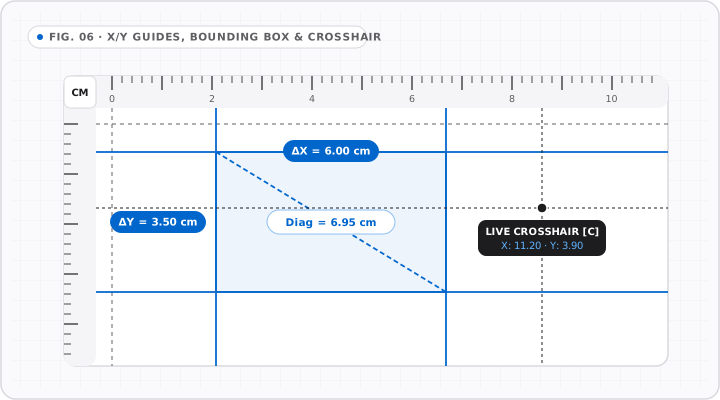
    FIG. 06 · 2D STAGE
    Workspace blueprint showing paired X and Y draggable guide lines forming a shaded ΔX by ΔY rectangle, diagonal span, and live crosshair badge.
    Combine vertical X guides, horizontal Y guides, and live cursor crosshairs to capture rectangular and diagonal spans in one pass.

    Precision X/Y Guide Box & Crosshair Readout

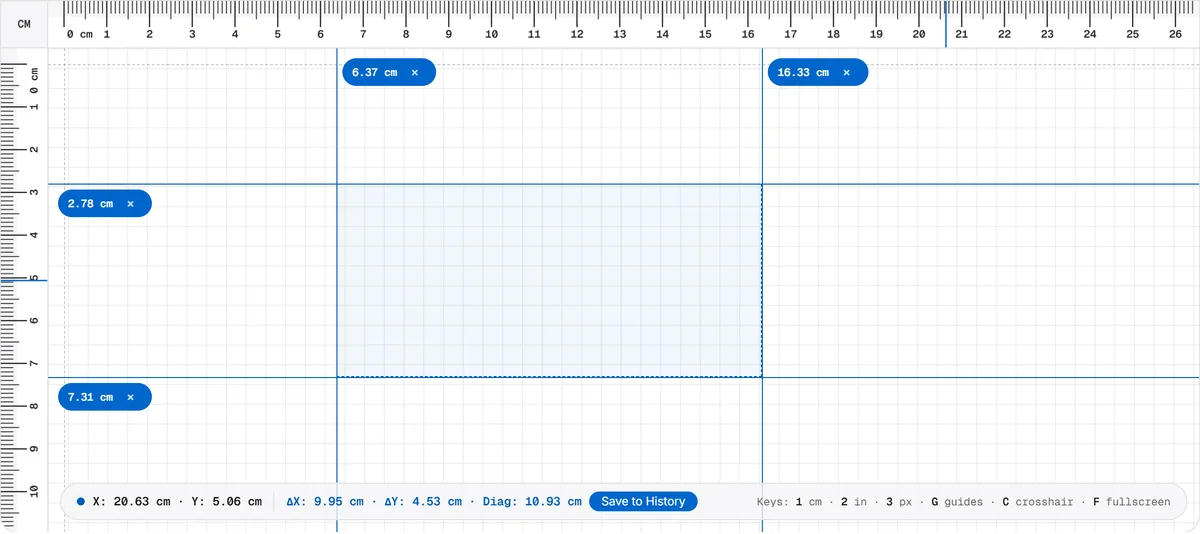
    LIVE UI · X/Y GUIDES
    Captured workspace view showing vertical and horizontal blue guide lines isolating a rectangular span with live ΔX, ΔY, and diagonal readout.
    Draggable X and Y guides lock rectangular spans directly onto the calibrated canvas with instant diagonal calculation.

    Vertical Screen Geometry · Portrait Mobile & Desktop Heights

    Active Vertical Screen Height by Device & Upright Object Guide

    Compare vertical measurement capacity across portrait smartphones, tablets, laptops, and desktop monitors.

    Why is vertical mode the best ruler layout for smartphones?

    Standard smartphones have a 19.5:9 or 20:9 aspect ratio, meaning a 6.1-inch to 6.7-inch phone held in portrait orientation provides 13.5 to 15.2 cm (5.3 to 6.0 inches) of vertical screen height compared to only 6.4 to 7.1 cm (2.5 to 2.8 inches) of horizontal width. Using the Vertical Online Ruler on a phone gives you more than double the continuous measurement span without rotating your device.

    How do you calibrate a vertical ruler on a narrow phone screen?

    Because a standard ISO/IEC 7810 ID-1 bank card is 85.60 mm (3.370 in) long, it is wider than a smartphone held in portrait orientation (~65 to 72 mm wide). In the Calibrate Your Screen section below, click the Landscape / Portrait toggle button on the credit card panel to rotate the on-screen card outline into Portrait orientation (53.98 mm wide × 85.60 mm high) so your physical card fits vertically inside the phone screen.

    How much vertical height fits on a laptop or desktop monitor?

    On a 16:9 widescreen display, the active vertical height equals 49.03% of the diagonal measurement (Height = Diagonal × 9 / √(16² + 9²)), while on a 16:10 display it equals 53.00% of the diagonal. A 15.6-inch laptop provides 19.4 cm (7.65 in) of vertical height, a 27-inch desktop monitor provides 33.6 cm (13.24 in), and a 27-inch monitor rotated 90° into portrait mode provides 59.8 cm (23.5 in) of vertical scale.

    Vertical Display Height & Standing Object Reference Table

    Active Vertical Screen Height by Device & Common Upright Object Heights

    Device / Display OrientationActive Height (cm / mm)Active Height (in)CSS Viewport HeightCommon Upright Objects That Fit
    6.1" Smartphone (Portrait)14.1 cm (141 mm)5.55 in844 – 852 CSS pxAA/AAA batteries (50.5 / 44.5 mm), credit card (85.6 mm), beverage can (122 mm)
    6.7" Pro Max / Ultra Phone (Portrait)15.5 cm (155 mm)6.10 in926 – 932 CSS pxPassport booklet (125 mm), ballpoint pen (~140 mm), 15 cm pocket ruler
    11.0" Tablet (Portrait 4:3)22.4 cm (224 mm)8.80 in1024 – 1194 CSS pxA5 notebook height (210 mm), water bottle, paperback book
    14.2" MacBook Pro (16:10 Landscape)19.0 cm (190 mm)7.48 in982 CSS pxSmartphone chassis height, 15 cm ruler, medium shipping box
    15.6" Laptop (16:9 Landscape)19.4 cm (194 mm)7.65 in864 – 1080 CSS pxDVD/Blu-ray case (190 mm), action figure, coffee mug
    24.0" Desktop Monitor (16:9 Landscape)29.9 cm (299 mm)11.77 in1080 CSS pxA4 paper height (297 mm), US Letter height (279.4 mm)
    27.0" Desktop Monitor (16:9 Landscape)33.6 cm (336 mm)13.24 in1080 – 1440 CSS pxFull 30 cm / 12-inch vertical height, wine bottle (300 mm)
    24.0"–27.0" Monitor (90° Portrait Pivot)53.1 – 59.8 cm20.9 – 23.5 in1920 – 2560 CSS pxTall speaker stands, PC tower chassis, 50 cm vertical scale

    Vertical height formulas: 16:9 Height = Diagonal × 0.49026 · 16:10 Height = Diagonal × 0.53000 · Standard US 12 oz beverage can height = 122.7 mm (4.83 in).

    Vertical & Portrait Ruler FAQ

    Common Questions About the Vertical Screen Ruler

    All Frequently Asked Questions

    How do I measure the height of a standing object using the vertical ruler?

    +

    Measuring the height of a standing object (such as a bottle, jar, battery, or 3D-printed model) with the vertical ruler works best using two horizontal guide lines. First, calibrate your screen and ensure the Left and Right vertical rulers are visible. Second, click the Left vertical ruler strip to drop a horizontal guide line aligned with the bottom base of your object, then click again to drop a second horizontal guide aligned with the top of the object. The workspace readout bar automatically computes the vertical distance (ΔY) between the two guides.

    Why does the vertical ruler measure from top (0) to bottom?

    +

    In screen metrology and computer graphics (HTML5 Canvas and W3C CSS coordinate systems), the origin (0, 0) is anchored at the top-left corner of the viewport so that scrolling the page or resizing the browser window never shifts the 0 datum position. You can either align the top of your object with the 0 line at the top of the Left or Right vertical ruler, or place two horizontal guide lines anywhere along the vertical axis and let Online Ruler Plus subtract the top and bottom coordinates automatically.

    How do I calibrate the vertical ruler on a mobile phone in portrait mode?

    +

    Calibrating the vertical ruler on a mobile phone in portrait mode uses the Portrait Credit Card mode built into Online Ruler Plus. Scroll down to the Calibrate Your Screen section, tap the Portrait (53.98 × 85.60 mm) orientation button above the card outline, and hold a physical bank or ID card vertically against your phone screen. Adjust the slider until the vertical box matches your card’s 85.60 mm height and tap Apply Calibration.

    Can I display horizontal and vertical rulers at the same time?

    +

    Yes. While the Vertical Ruler page starts with the Left and Right vertical edges active for distraction-free height measurement, you can click Top, Bottom, or All Edges in the Edges pod of the workspace toolbar at any time to combine horizontal and vertical scales into a 2D bounding-box measurement stage.