Skip to online ruler workspace
ISO/IEC 7810 ID-1 Reference · 1 in = 25.4 mm

Actual-Size Online Ruler in Inches, cm & mm

Calibrated on-screen measurement tool for desktops, laptops, tablets, and phones. Match a standard bank card or enter your display diagonal to measure objects to scale.

Interactive Online Screen Ruler Workspace

Estimated calibration96.0 PPICalibrate
Guide Axis:
cm

Align your object with the 0 tick mark. Click any ruler or grid to drop draggable measurement guides.

X: 0.00 cm · Y: 0.00 cm
Live Unit Converter@ 96.0 PPI
3 3/8 in (3 3/8 in)

Display Density Calibration · Saved Locally Per Screen

Calibrate Your Screen for True Physical Scale

Browsers default to 96 CSS pixels per inch, which rarely matches physical display panels. Choose one of the three calibration methods below so every millimeter and fractional inch tick corresponds to actual physical length.

Active ScaleEstimated calibration

96.0 PPI·3.780 px/mm

CSS reference scale (96 px per inch)

Display Profiles:
ISO/IEC 7810 ID-1 Standard · 85.60 × 53.98 mm

Align a Physical Bank, Credit, or ID Card

Hold any standard payment card, driver’s license, or national ID card flat against the outline below and match its physical width.

Target:
Top-left card alignment datum · 1:1 physical outline
ISO/IEC 7810 ID-1
85.60 mm

Place Physical Card Here

Align left & top edges · Match outer border

3.370 × 2.125 in53.98 mm
  1. Hold card flat: Place a real credit or ID card flush against the top-left corner of the box.
  2. Match outer edge: Drag the slider or press ← → keys until the right edge aligns exactly.
  3. Avoid parallax: Keep your eyes perpendicular to the right edge of the card.

Computed Scale: 96.0 CSS PPI · 3.780 px/mm

Keyboard fine-tuning: click the card stage and press ← → (Shift for 5px steps).

Physical Verification Gauge

Verify With Everyday Objects

Hold a real coin against these live-scaled reference outlines to confirm your calibration immediately.

24.26 mm
US Quarter
23.25 mm
€1 Euro
19.05 mm
US Penny
50.0 mm Reference Bar (5.0 cm)1.969 in

Local Session Log

Measurement History

Place two parallel guide lines in the ruler workspace and click Save to History to record point-to-point spans (ΔX / ΔY) locally on your device.

    Storage: localStorage onlyZero network sync

    Practical Screen Metrology · Inches, cm & mm Guide

    Online Ruler Guide: Actual-Size Inches, cm & mm

    Online Ruler Plus is a free online ruler and calibrated screen measurement tool built to measure physical objects in inches, centimeters, millimeters, and CSS pixels directly on your display. Because web browsers assume 96 CSS pixels per inch by default, calibrating once maps your real pixel density so ticks render to scale across laptops, desktop monitors, tablets, and phones—with zero downloads, zero ads, and 100% local privacy.

    01 · How It Works

    What Is an Online Ruler?

    An online ruler turns your display glass into a real online ruler calibrated to 1:1 physical scale. Rather than guessing from fixed 96 CSS pixels per inch, OnlineRulerPlus multiplies your verified display density (devicePxPerMm) by exact NIST/BIPM constants (1 inch = 25.4 mm, 1 cm = 10 mm) on an HTML5 canvas, keeping tick spacing accurate across browser zoom changes.

    02 · Features & Steps

    How to Use Our Online Ruler Tool

    Calibrate once below, choose your unit, and align any object at the inset 0 datum line so monitor bezels never clip the start edge. Click any strip to drop draggable ΔX/ΔY guide lines (G), toggle the cursor crosshair (C), rotate the 360° floating ruler or dual-ray protractor (P), or paste screenshots into our offline Photo / Ctrl+V ruler.

    Measure in workspace
    03 · US Imperial

    Measuring in Inches (1/16″ & 12-Inch)

    In Inches mode (shortcut 2), every inch (25.4 mm) divides into classic 1/2, 1/4, 1/8, 1/16, or 1/32 graduations for shipping cartons, woodworking, and crafts. Wide desktop and laptop monitors display up to a full 12-inch online ruler span—or expand via fullscreen F—with live decimal and reduced fraction readouts.

    Open 1/16″ Inch Ruler
    04 · Metric Scale

    Measuring in Centimeters & Millimeters

    Switch to cm (1) for stationery, envelopes, and everyday parcels (1 cm = 10 mm), or choose the mm online ruler (4) for fine 1 mm pitch checks on M2–M10 screws, watch lug widths, coins, and 3D-printed parts. Toggle Dual cm/in, cm+px, or in+px anytime to compare metric, imperial, and CSS pixel scales side by side.

    Open cm & mm Rulers
    05 · Calibration

    How to Calibrate for Accurate Scale

    To create an accurate online ruler to scale, match any standard bank card, debit card, or driver license (ISO/IEC 7810 ID-1: 85.60 × 53.98 mm / 3.370 × 2.125 in) against the calibration box, select a coin or A4/US Letter preset, or enter your screen diagonal in inches. Calibration persists locally per monitor so secondary displays keep independent profiles.

    Calibrate with a bank card
    06 · Use Cases & Limits

    Actual-Size Tips & Practical Uses

    Use OnlineRulerPlus to size postal boxes, ring and coin diameters, hardware fasteners, UI breakpoints, or 100%-scale printable SVG rulers. Look straight down perpendicular to the glass to avoid optical parallax, verify with a US Quarter (24.26 mm / 0.955 in) or Penny (19.05 mm / 0.75 in), and keep mechanical calipers for sub-0.2 mm machining tolerances.

    Read calibration guide
    07 · Any Device

    Desktop, Laptop & Mobile Portrait Use

    Desktop monitors and laptops provide wide horizontal strips for 12-inch spans, Focus Mode, and single-key shortcuts. On smartphones and narrow tablets, switch to Portrait Card Calibration (53.98 mm short card edge) or our vertical edge strips and drag touch guide lines across the screen. Physical screen dimensions set the single-pass limit on all devices.

    Try mobile-friendly vertical mode
    08 · Why OnlineRulerPlus

    Zero Ads, Full Privacy & Quick Answers

    Unlike ad-heavy screen rulers that shift layout while you measure on the glass, OnlineRulerPlus runs 100% client-side with zero layout jump, dark mode (D), and zero server uploads. Browse our Measurement Blog for unit conversion tables and calibration walkthroughs, or scroll below for direct answers on phones, cameras, and PPI accuracy.

    Jump to FAQs ↓

    See Every Measurement Mechanics in Motion

    Motion playing
    0123453.00 cm0.1 cm = 1 mm · 10 mm = 1 cm

    Major centimeter divisions subdivide cleanly into 5 mm half-marks and 1 mm fine graduations.

    1 cm = 10 mm

    Display Optics · W3C CSS Reference Pixel vs. Hardware PPI

    Why Do Screen Rulers Need PPI Calibration?

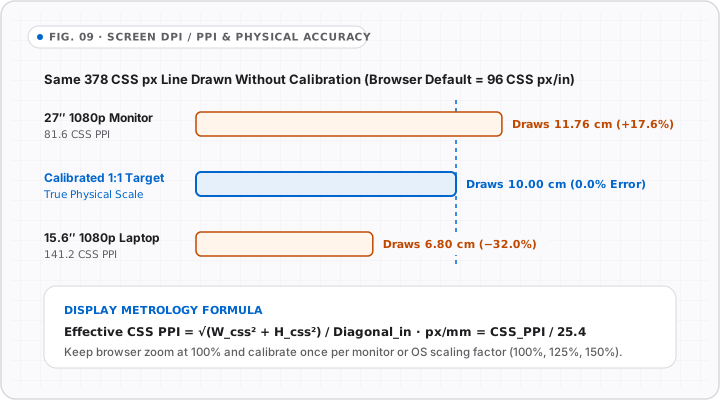
    Web layouts treat 1 inch as 96 CSS pixels (3.780 px/mm), yet physical displays range from 81.6 CSS PPI on 27-inch 1080p monitors to over 140 CSS PPI on compact laptops and phones. That difference shifts uncalibrated 10 cm spans by 10% to 35%.

    Physical Verification Objects

    Double-check your calibrated online ruler anytime using standardized everyday references: an ISO/IEC 7810 ID-1 payment card (85.60 × 53.98 mm / 3.370 × 2.125 in), a US Quarter (24.26 mm / 0.955 in), a US Nickel (21.21 mm), a US Penny (19.05 mm / 0.75 in), or a 1 Euro coin (23.25 mm).

    Hardware Limitations & Tolerance

    Screen measurement is bounded by visible monitor width, display cover-glass thickness (parallax if viewed off-axis), and whole-pixel rounding (~0.1–0.3 mm). Use this tool for everyday objects, shipping parcels, crafts, and UI QA—never as a substitute for certified micrometer or vernier calipers.

    Hardware Density Reference

    Common Displays & Uncalibrated 96 PPI Error on a 10 cm Line

    Display Panel / ScalingCSS ViewportEffective CSS PPICSS px/mmUncalibrated 96 PPI Error
    13.3" MacBook Air / Pro (Retina)1440 × 900 CSS (2×)127.7 PPI5.027 px/mm−24.8% (draws 7.52 cm)
    14.2" MacBook Pro (Liquid Retina XDR)1512 × 982 CSS (2×)127.0 PPI5.000 px/mm−24.4% (draws 7.56 cm)
    15.6" Full HD Laptop (100% Windows Scale)1920 × 1080 CSS (1×)141.2 PPI5.559 px/mm−32.0% (draws 6.80 cm)
    15.6" Full HD Laptop (125% Windows Scale)1536 × 864 CSS (1.25×)113.0 PPI4.448 px/mm−15.0% (draws 8.50 cm)
    24" Full HD Desktop Monitor (1080p)1920 × 1080 CSS (1×)91.8 PPI3.614 px/mm+4.6% (draws 10.46 cm)
    27" Full HD Desktop Monitor (1080p)1920 × 1080 CSS (1×)81.6 PPI3.212 px/mm+17.6% (draws 11.76 cm)
    27" QHD Monitor (2560 × 1440, 100%)2560 × 1440 CSS (1×)108.8 PPI4.283 px/mm−11.8% (draws 8.82 cm)
    27" 4K UHD Monitor (200% HiDPI Scale)1920 × 1080 CSS (2×)81.6 CSS PPI3.212 px/mm+17.6% (draws 11.76 cm)

    Formula: Effective CSS PPI = √(W_css² + H_css²) / diagonalInches · pxPerMm = CSS_PPI / 25.4. By international NIST / BIPM standard, 1 inch equals exactly 25.4 mm.

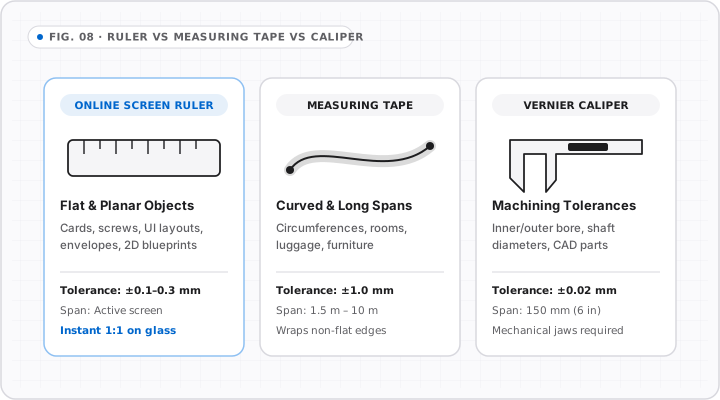
    Ruler vs Measuring Tape vs Caliper

    FIG. 08 · TOOL SELECTION
    Three-column engineering comparison between a calibrated on-screen ruler, flexible measuring tape, and Vernier caliper.
    Match the instrument to task tolerance: on-screen ruler for flat sub-millimeter objects, tape for long curves, and caliper for bores.

    Screen DPI/PPI & Physical Accuracy

    FIG. 09 · DISPLAY PHYSICS
    Comparison chart showing a 378 CSS px line rendering at 11.76 cm on an 81.6 PPI monitor, 6.80 cm on a 141.2 PPI laptop, and 10.00 cm when calibrated.
    Uncalibrated browsers assume 96 CSS px/in, introducing up to 32% error across panels until calibrated to true physical pixel density.

    Frequently Asked Questions · Usage, Calibration & Compatibility

    Frequently Asked Questions About Online Rulers

    View All 20 FAQs

    Is there an online ruler you can use to measure real objects online?

    +

    Yes. Online Ruler Plus turns any desktop monitor, laptop, tablet, or smartphone screen into a free actual-size online ruler calibrated in inches (with 1/16″ fractions), centimeters, and millimeters. Once you match a standard bank card or enter your display diagonal, tick spacing adjusts to your panel’s physical pixel pitch so you can measure physical objects directly on the glass.

    How do you use an online ruler?

    +

    First, calibrate your display under Calibrate Your Screen using an ISO/IEC 7810 ID-1 payment card (85.60 × 53.98 mm) or your screen diagonal at 100% browser zoom. Second, pick Inches, cm, mm, or px from the workspace toolbar. Third, align the starting edge of your item with the visible 0 mark inside the screen frame (inset from the bezel), then read the opposite edge directly or click the ruler strip to drop draggable measurement guide lines.

    How do you read a ruler online in inches, cm, and mm?

    +

    Start at the 0 datum line, locate the whole unit number just before your object ends, and count the smaller graduation ticks past that number. On the metric scale, numbered centimeters break into ten 1 mm increments with a taller tick at the 5 mm halfway mark. On the imperial inch scale, tick height decreases by fraction: half-inch (1/2″), quarter-inch (1/4″), eighth-inch (1/8″), and sixteenth-inch (1/16″). Moving your pointer across the stage also prints exact coordinates in the top status bar.

    How do you identify 1 inch on an online ruler?

    +

    Switch the workspace to Inches (shortcut 2) after calibrating your display, then look at the calibrated distance from 0 to 1—equivalent to exactly 25.4 millimeters (2.54 cm). Do not count 96 CSS pixels on an uncalibrated monitor, because real screen pixel densities vary widely. For a fast sanity check against calibrated screen ticks, a US Quarter measures 0.955 inches (24.26 mm, just under 1 inch) and a US Penny measures exactly 0.75 inches (3/4 inch).

    How do you measure cm and mm online?

    +

    Click cm (shortcut 1) or mm (shortcut 4) in the workspace toolbar, or launch the dedicated cm Ruler or mm Ruler page. Hold your item flat against the calibrated screen edge starting at the 0 hairline, read whole centimeters along the numbered ticks, and count individual 1 mm divisions to the nearest edge. Turning on Dual cm/in displays both metric and imperial scales simultaneously for side-by-side conversion.

    Can I use my phone as a ruler, and can a smartphone measure objects?

    +

    Yes, within the physical length of your phone display. Modern smartphones pack high-DPI OLED or LCD panels (usually 2x to 3x device pixel ratio), so an uncalibrated 96 PPI web scale renders too small. Open Portrait Card Calibration (53.98 mm short-edge card outline) on your phone first, then place coins, screws, rings, or cards directly on the glass. Items longer than your phone screen—roughly 13 to 16 cm (5 to 6.5 inches)—cannot fit in a single pass and require stepping along a mark or using a physical tape measure.

    Can I use my camera as a ruler?

    +

    Online Ruler Plus does not access your live camera or run AR depth estimation; live ruler measurements happen directly against your calibrated screen glass, and our offline Photo / Ctrl+V tool measures static uploaded or pasted photos from a 2-point reference object. While dedicated mobile apps such as Apple Measure (using LiDAR on supported iPhones/iPads) or Android ARCore rulers estimate room-scale distances through a camera, camera-based estimates are sensitive to lighting, lens distortion, and angle drift.

    Why do online rulers require calibration, and does browser zoom break accuracy?

    +

    Web browsers render layout dimensions using a fixed W3C reference ratio of 96 CSS pixels per inch while concealing your monitor’s true physical dimensions for privacy. Because physical desktop panels sit around 82 to 110 CSS PPI and laptops often hit 113 to 142 CSS PPI, uncalibrated web rulers routinely err by 10% to 35%. Online Ruler Plus stores your calibrated physical hardware density (devicePxPerMm) in localStorage and listens for devicePixelRatio changes, automatically rescaling tick spacing if you zoom the page.

    Does calibration carry across multiple monitors and stay private?

    +

    Each manual calibration saves locally in browser localStorage keyed by your screen resolution, devicePixelRatio, and platform family. Moving the window to a second monitor with a different size prompts or loads that display’s own saved scale profile. No measurement dimensions, camera streams, or calibration values are uploaded to our servers; cookie and advertising disclosures are detailed on our Privacy Policy page.